Password management
One key to rule them all

Passwords, passwords, passwords, passwords, passwords, passwords...

You can't remember all the passwords for all the digital platforms you utilize.
Many choose to use only one or two different passwords everywhere to solve this. But this is a very insecure practice.
There are password management apps and they may be a better option, but in the recent past, one of them had a data breach problem.
So what to do? Well. Since you are a user of one or more Apple products, you already have access to a password management solution, very powerful and above all, secure.
In this case, it is not an app, but certain functions & features integrated into the operating system that appear at different times. But let's take it one step at a time.
Where are passwords stored?
The answer has to be twofold. First: they are stored on your device but in encrypted form. Only you have the key to open that vault, be it your fingerprint, your face, or your Apple ID password.
Second. Access to that vault is in Settings > Passwords on iOS devices (On the Mac there is also a way to access it, but it is more complicated. You can find tutorials on the Internet).
Give it a vote of confidence
When you're logging into a website or app and your device suggests a password. I recommend you to accept the suggestion. You won't have to remember it, the device will do it for you. It's more secure. Trust me. But you have to accept that your device remembers it.
If for some reason you have to choose a password 'manually', by all means, accept that the device remembers it. Choose one that you haven't used before. It is better if it is made up and different from others. Think that you won't have to remember it. Your Apple device will do it for you.
Protip. When configuring your different devices you have the option to set up your passwords and keychains to be saved in iCloud. I recommend that you activate it. So that the passwords saved on your device A, are also available on your device B.
Apple's management power
Over the Internet, there are specialized sites that help you identify if your email(s) or password(s) have been leaked from some third-party site. But very few know about this. Apple does the work for you.
When you log into your password vault you may find a message like this:
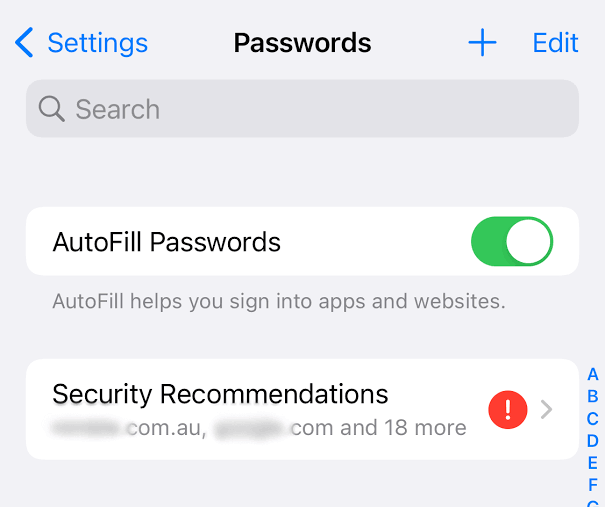
it means that it is highly recommended that you log into those sites or apps and change your passwords. Remember that your device can generate them randomly and with a high level of security. It will also remember them for you.
Protip. I recommend using Safari as your browser to take full advantage of Apple's password management. However, there are sites that do not respect best practices and you may find that the device did not autofill the passwords. In this case, go to Settings > Passwords. Search for the password according to the name of the site, for example. When you open the site tab, you will find the username and password. Tapping on the dots will reveal the password and you can even copy it to your clipboard.
So now you know. If you trust the Apple environment to work together, you can have a lot more peace of mind about your security. But you can also free up the space passwords take up in your mind 😉.
Do you have doubts about this tip?
Write me in the comments if you have any doubts. Remember that these are not exhaustive guides. I only show you the way, you have to follow it. Also via any search engine, you can find in-depth guides.
See you next Thursday!